An open graph tag checker is one of those tools you don't appreciate until a broken link preview costs you traffic. When you share a URL on Facebook, LinkedIn, Slack, or X (formerly Twitter), the platform reads your OG tags to build the visual card users see. If your metadata is wrong, missing, or outdated, the preview looks terrible, and people scroll right past it.
A reliable metadata validator and link preview tool can catch these problems before they go live. For web developers and SEO specialists, validating social media previews is a non-negotiable part of any deployment workflow.
Understanding what an Open Graph tag is and how it works gives you the foundation, but knowing which tools to use puts that knowledge into practice. This guide walks through the best validator tools available right now and shows you exactly how to use them.
Key Takeaways
- Always validate OG tags before publishing or sharing any URL on social media.
- Different platforms render previews differently, so test across multiple validators.
- Free tools like OG Checker can catch the most common metadata errors quickly.
- Broken images are the number one cause of poor-looking social media link previews.
- Automating metadata validation in your CI/CD pipeline saves time and prevents embarrassment.
1. Understand OG Tags and Why Validation Matters
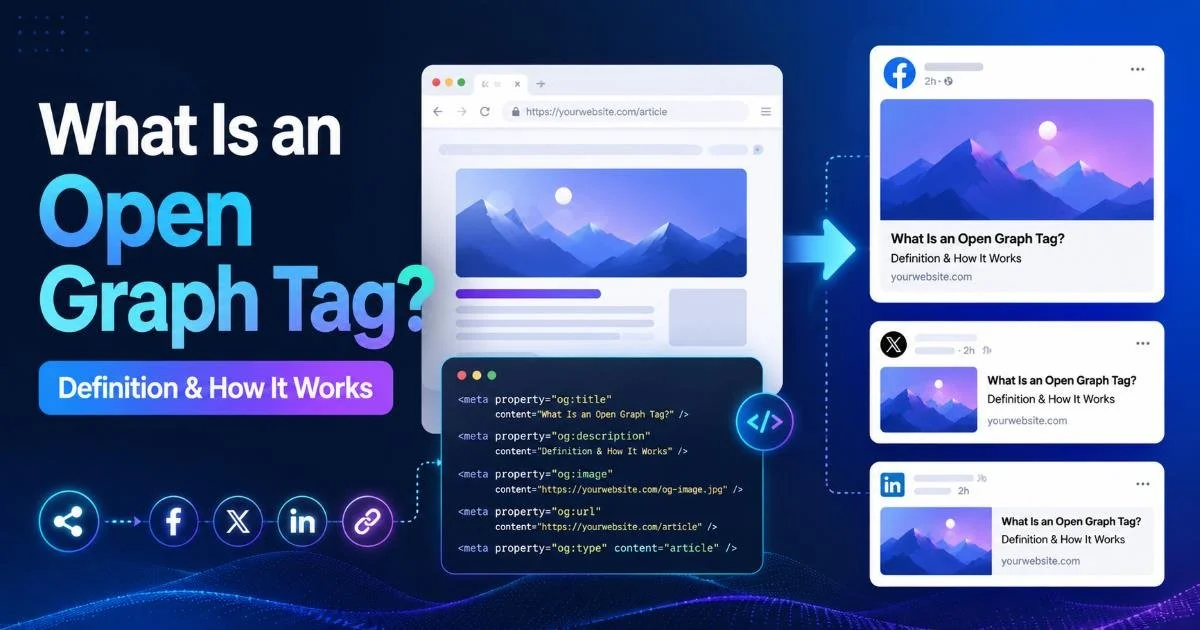
Open Graph tags are HTML meta elements placed in your page's <head> section. They tell social media platforms what title, description, image, and URL to display when someone shares your link. Facebook introduced the protocol in 2010, and it has since become the standard adopted by LinkedIn, Pinterest, Slack, Discord, and most messaging apps. Without these tags, platforms attempt to scrape your page content, often producing unpredictable and ugly results.
The stakes are real. A study by BuzzSumo found that articles with properly optimized preview images receive significantly higher engagement rates on Facebook. If your og:image points to a broken URL or your og:title is truncated, you lose clicks. For SEO specialists managing dozens or hundreds of pages, manually checking each one is impractical. That's where og tag checker tools become part of your standard toolkit, sitting alongside HTML validators and accessibility auditors.
The Core OG Properties
Every page should include at minimum four OG properties: og:title, og:description, og:image, and og:url. The title should be concise (under 60 characters for best rendering), while the description can extend to around 200 characters. The image needs to meet platform-specific size requirements; Facebook recommends 1200×630 pixels. Your og:url should be the canonical URL of the page, which helps platforms avoid duplicate content issues.
Read also GDPR Fines Explained: Penalties You Need to Know
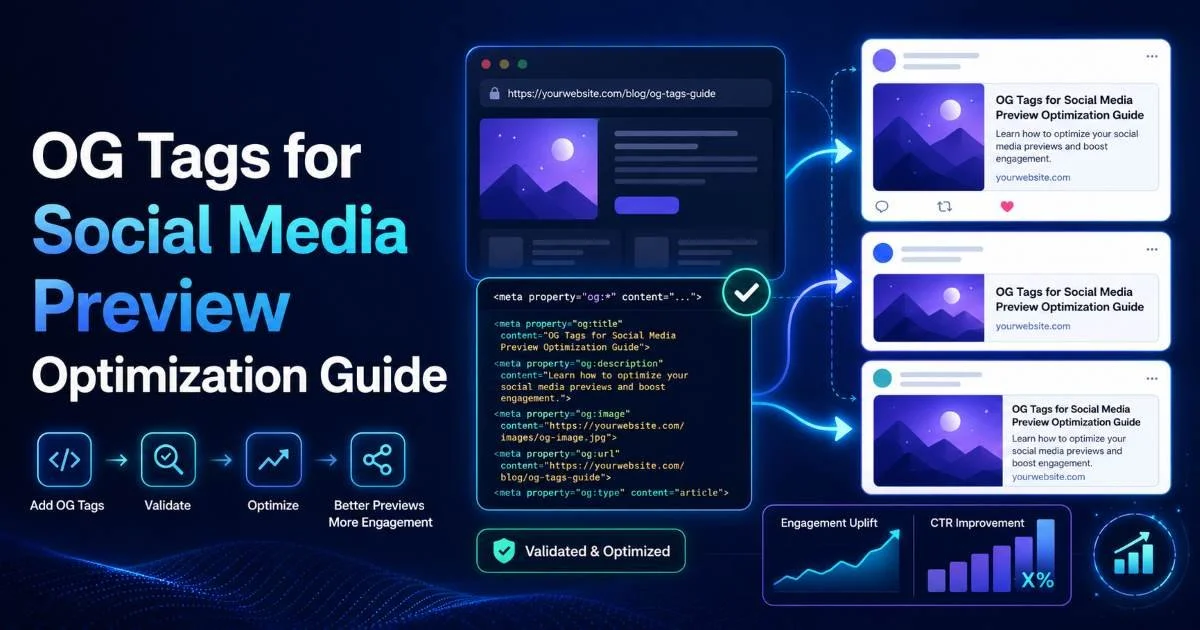
Beyond these basics, properties like og:type, og:site_name, and og:locale refine how your content appears. For e-commerce sites, product-specific tags such as og:price:amount can enrich previews further. The more precise your tags, the more control you maintain over your content's first impression. If you want a deeper look at optimizing these tags for social sharing, this guide on OG tags for social media preview optimization covers the topic thoroughly.
Set og:image dimensions to at least 1200×630 pixels to avoid cropping on Facebook and LinkedIn.
2. Compare the Best Metadata Validator Tools
Not all metadata validators are equal. Some only check Open Graph tags, while others also validate Twitter Cards, structured data, and general HTML meta tags. The best approach is to use a combination: a general-purpose OG checker for quick scans and platform-specific debuggers for final verification. Below is a comparison of the most popular tools available to web developers and SEO specialists today.
The OG Checker at ogchecker.dev stands out for its simplicity and speed. You paste a URL, hit scan, and within seconds you see a full preview of how your link will appear on Facebook, X, and LinkedIn. It flags missing tags, warns about image sizing issues, and shows the raw meta tag output. For developers who need a quick validation loop during development, it's the fastest option available without requiring authentication or API keys.
Platform-Specific Debuggers
Facebook's Sharing Debugger remains the authoritative tool for Facebook-specific previews. It not only shows you what Facebook sees but also lets you "scrape again" to clear cached previews after you've made changes. This cache-busting feature is something general-purpose tools don't offer. LinkedIn's Post Inspector works similarly, pulling fresh data and showing you the exact card LinkedIn will display.
Twitter's Card Validator has been somewhat limited since X's rebranding, but it still functions for validating Twitter Card markup. If your site uses both OG tags and Twitter-specific meta tags (like twitter:card and twitter:image), you should test with both a general social media preview tool and Twitter's own validator. The platform applies fallback logic, using OG tags when Twitter-specific ones are absent, but the rendering can differ in subtle ways.
Facebook caches OG data aggressively. After updating your tags, always use the Sharing Debugger to force a fresh scrape.
3. Use a Metadata Validator Step by Step
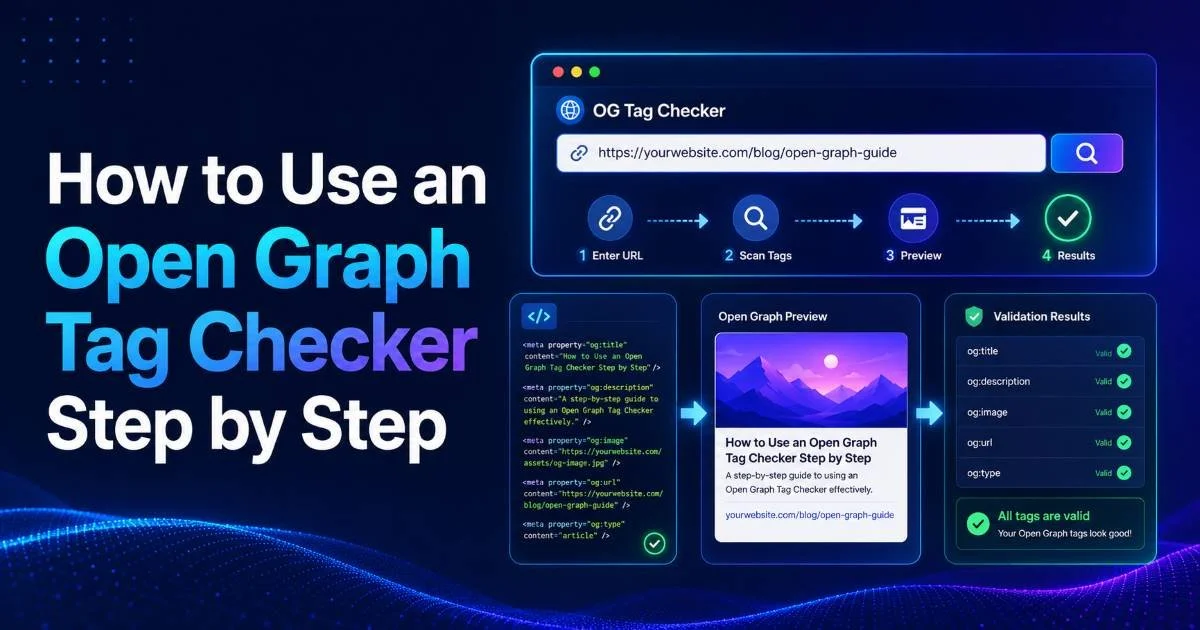
Using a link preview tool effectively means more than just pasting a URL and glancing at the output. Start by identifying which pages matter most. Your homepage, top landing pages, recent blog posts, and any page you're actively promoting on social channels should be your priority list. For a step-by-step walkthrough of using a specific checker, this guide on how to use an open graph tag checker breaks the process down clearly.
Begin by opening your preferred validator. Enter the URL of the page you want to test. The tool will fetch the page, parse the HTML head, and extract all OG and meta tags it finds. Review the output carefully: check that the title matches what you intend, the description is compelling and correctly truncated, and the image renders at the right aspect ratio. Don't just verify that tags exist; confirm they contain the right content for each specific page.
"The difference between a shared link that gets clicked and one that gets ignored often comes down to a single missing og:image tag."
Interpreting Results and Fixing Errors
Common errors fall into predictable categories. Missing tags are the most obvious: your validator will flag any absent required property. Image errors are next, typically caused by relative URLs (platforms need absolute URLs), images that are too small, or server-side restrictions blocking crawlers from accessing image files. Title and description issues usually involve truncation or encoding problems with special characters.
When you find an error, fix it in your HTML source or CMS, deploy the change, then re-validate. If the platform still shows old data, use its cache-clearing mechanism. For Facebook, hit "Scrape Again" in the Sharing Debugger. For LinkedIn, the Post Inspector automatically fetches fresh data each time. Keep a log of which pages you've validated, especially before major campaigns. Knowing how to optimize link previews for better click-through rates can make the difference between a mediocre campaign and one that performs well.
Never use relative paths for og:image URLs. Social platforms cannot resolve them and will display a blank or broken image.
4. Integrate Validation Into Your Workflow
Validating metadata manually works fine for a handful of pages, but it doesn't scale. If you're managing a site with hundreds of pages, each with unique OG tags generated dynamically by your CMS or framework, you need a systematic approach. The goal is to catch metadata issues the same way you catch broken builds or failing tests: automatically and before deployment hits production.
Start by adding OG tag checks to your content publishing checklist. Whether you use WordPress, Next.js, Nuxt, or a custom CMS, create a pre-publish step that validates the four required OG properties exist and contain non-empty values. Many CMS plugins (like Yoast SEO for WordPress) generate OG tags automatically, but they can still produce poor results if fields are left empty or default values aren't customized for each page.
Automated Checks in CI/CD
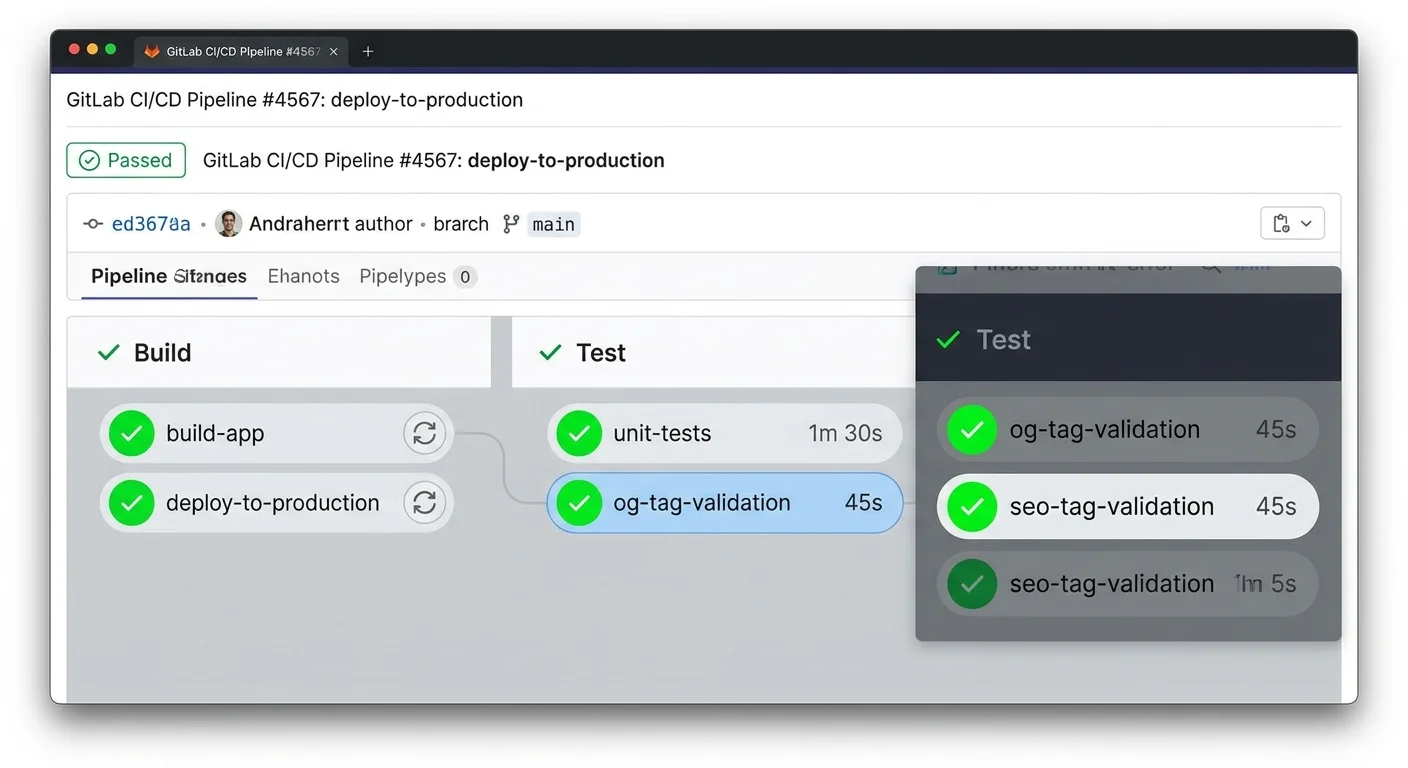
For development teams, integrating metadata validation into your CI/CD pipeline is the most reliable approach. Tools like html-validate, custom scripts using libraries such as cheerio or open-graph-scraper in Node.js, or Python's beautifulsoup4 can parse your rendered HTML and assert that required OG tags are present. Run these checks on staging URLs after each deployment. If a tag is missing, the build fails, and someone investigates before the page goes live.
You can also set up periodic monitoring. A simple cron job that scans your sitemap, checks each URL's OG tags, and sends a Slack notification when something breaks is surprisingly easy to build. This catches regressions caused by template changes, CMS updates, or accidental content edits. Pair this with a monthly manual review using your og tags checker of choice, and you'll maintain consistent, high-quality social media previews across your entire site without constant manual effort.
Create a simple script that parses your sitemap.xml and validates OG tags for every URL weekly. It takes under an hour to build and catches regressions automatically.
Frequently Asked Questions
?How do I fix a broken og:image before sharing on social media?
?Is OG Checker better than Facebook's own debugger tool?
?How long does validating OG tags add to a deployment workflow?
?Does fixing OG tags retroactively update previews already shared?
Final Thoughts
Metadata validation isn't glamorous work, but it directly affects how your content performs on social media. The right combination of a general-purpose metadata validator like OG Checker, platform-specific debuggers, and automated checks in your workflow will keep your link previews sharp and your click-through rates healthy. Start with manual validation on your highest-traffic pages today, then build toward automation as your process matures. Your future self, and your marketing team, will thank you.
Disclaimer: Portions of this content may have been generated using AI tools to enhance clarity and brevity. While reviewed by a human, independent verification is encouraged.