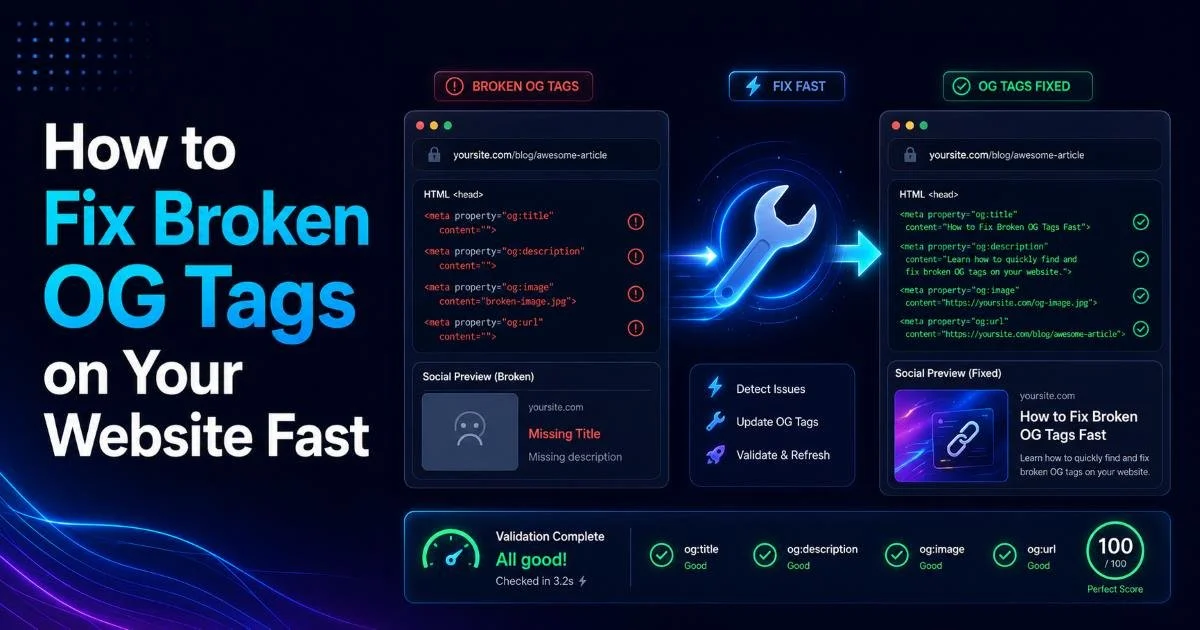
An open graph tag checker is often the first tool developers reach for when social media previews look wrong. Broken OG tags cause missing images, garbled titles, and blank descriptions on Facebook, LinkedIn, Twitter, and Slack. The frustrating part? Your page might look perfect in a browser while appearing completely broken in every shared link.
For web developers and SEO specialists, this disconnect can tank click-through rates and make polished content look amateurish. Fixing broken og tags doesn't require hours of debugging if you follow a systematic approach.
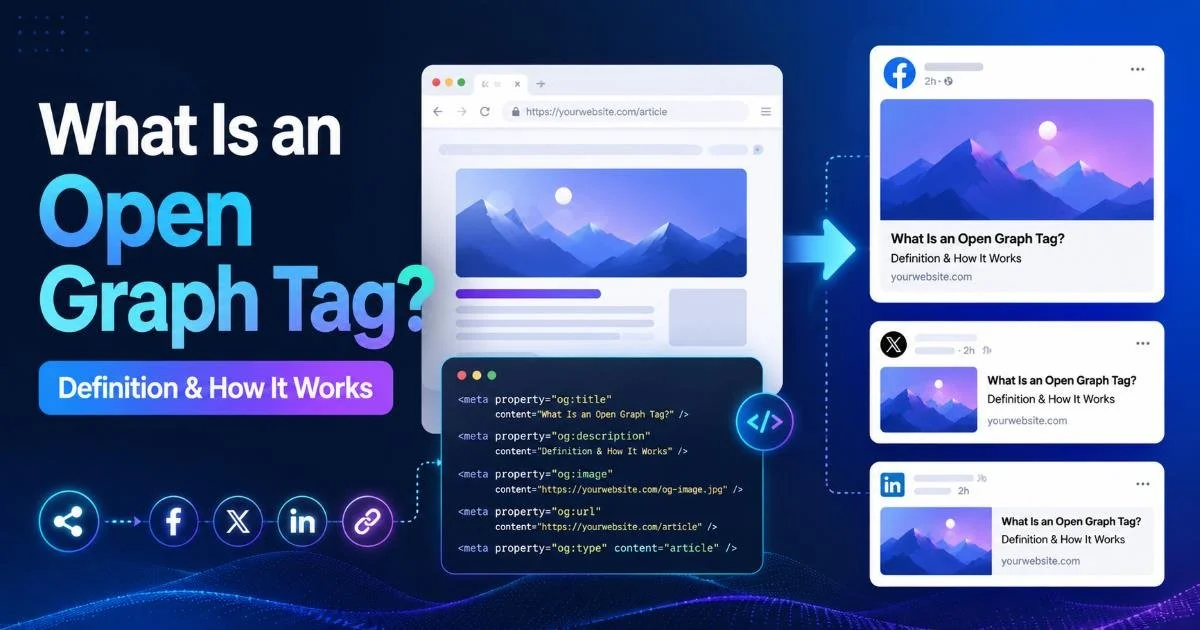
Understanding how Open Graph tags work and why they matter gives you the foundation to diagnose and repair issues quickly. This guide walks you through a fast, reliable process for identifying and resolving the most common OG tag failures on your website.
Key Takeaways
- Most broken OG tags stem from just five common mistakes you can fix in minutes.
- Always validate metadata with a dedicated tool before and after making changes.
- Platform-specific caches often display stale previews even after you fix your tags.
- Image dimensions below 1200x630 pixels frequently cause preview failures on Facebook.
- Automated monitoring prevents OG tag regressions from reaching production unnoticed.
Step 1: Diagnose Your Broken OG Tags
Run a Full Page Scan
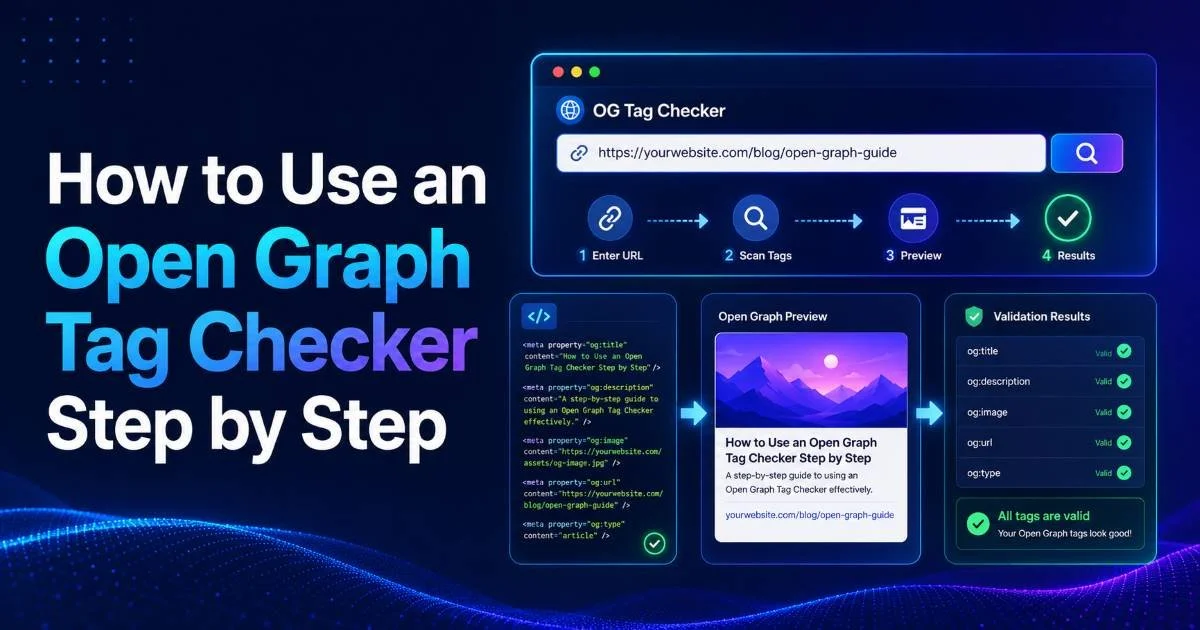
Before touching any code, you need to see exactly what social platforms see when they crawl your URL. Open your browser's developer tools, view the page source, and search for og: to locate all Open Graph meta tags manually. This quick check reveals whether tags exist at all or if they're being rendered incorrectly. A step-by-step approach using an Open Graph tag checker gives you a structured view of every tag, its value, and whether it meets platform requirements.
Automated scanners catch problems that manual inspection misses. Dynamic sites built with React, Vue, or Angular often render OG tags client-side, which means crawlers never see them. Server-side rendering or pre-rendering must handle these meta tags. Run your URL through a metadata validator to confirm what the actual HTTP response contains, not what your JavaScript framework eventually renders in the browser.
View your page source (Ctrl+U) rather than using Inspect Element, since Inspect shows the DOM after JavaScript execution while source shows what crawlers actually receive.
Check Platform-Specific Validators
Each social platform interprets OG tags slightly differently. Facebook's Sharing Debugger, Twitter's Card Validator, and LinkedIn's Post Inspector each have their own caching behavior and tag requirements. Test your URL on all three because a page that previews correctly on Twitter might display a broken image on LinkedIn. Document every error and warning each validator reports before moving to the fix stage.
Pay attention to the specific error messages these validators provide. Facebook, for example, will explicitly tell you if your image is too small, if a required property is missing, or if it cannot reach your server. LinkedIn tends to be less descriptive but will show a blank preview when it encounters issues. Collecting these diagnostics across platforms gives you a complete repair checklist.
Step 2: Identify Common OG Tag Errors
Missing or Malformed Tags
The most frequent OG tag failure is simply a missing required property. Facebook's Open Graph protocol requires four tags at minimum: og:title, og:type, og:image, and og:url. Omitting any one of these causes unpredictable fallback behavior where the platform guesses at your content. Sites that use CMS plugins sometimes lose tags after updates, theme changes, or migration between hosting environments.
Malformed tags represent the second most common issue. A typical mistake is using name instead of property in the meta tag attribute. The correct syntax is <meta property="og:title" content="Your Title">, but many developers accidentally write <meta name="og:title">, which most platforms simply ignore. Self-closing tag syntax, character encoding in content values, and unclosed quotes also cause silent failures that browsers tolerate but crawlers reject.
Image and URL Problems
Image-related failures account for a large share of broken social media previews. Facebook requires images to be at least 200x200 pixels, but the recommended size is 1200x630 for optimal display. Images served over HTTP instead of HTTPS get blocked on many platforms. Relative URLs in the og:image tag (like /images/hero.jpg) also fail because crawlers need absolute URLs to fetch the resource.
Never use relative paths in og:image tags. Social platform crawlers cannot resolve them, and your preview image will simply not appear.
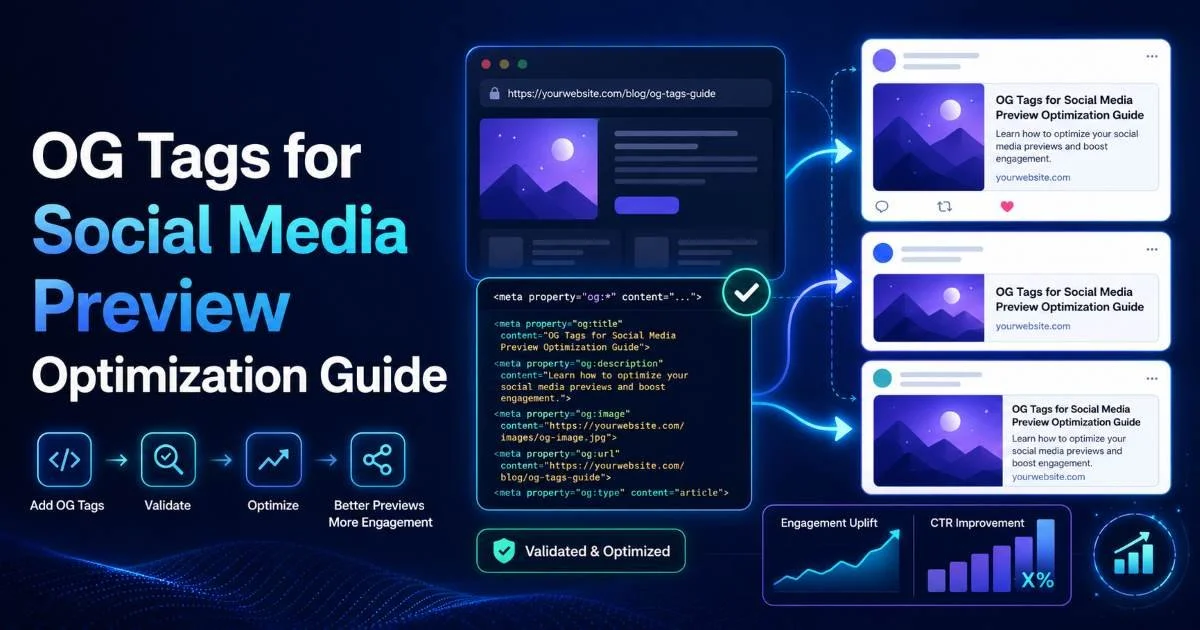
Another subtle problem occurs when the og:url tag points to a different page than the one being shared. This causes platforms to fetch OG tags from the canonical URL instead, which might have entirely different metadata. Redirect chains between HTTP and HTTPS versions, www and non-www variants, or trailing slash inconsistencies all contribute to this mismatch. For guidance on optimizing OG tags specifically for social media previews, image sizing and URL consistency are the top priorities.
Step 3: Fix OG Tags in Your Source Code
Correct Tag Placement
All Open Graph meta tags must appear inside the <head> section of your HTML document, ideally near the top before any script tags. Placing them after large inline scripts or stylesheets can cause crawlers with timeout limits to miss them entirely. If you're using a framework like Next.js, use the Head component; for WordPress, a plugin like Yoast SEO handles placement automatically. Always verify in the raw page source that tags appear where expected.
Read also How Website Security Scanners Detect Malware Fast
Here's the minimal correct implementation for an article page. Note the use of the property attribute, absolute URLs, and properly escaped content values. Every tag should have a non-empty content attribute. Empty or whitespace-only values cause the same problems as missing tags on most platforms.
Place OG tags before Twitter Card tags in your head section. Twitter falls back to OG tags when its own meta tags are absent, so this ordering provides better compatibility.
If your site uses a backend framework like FastAPI or Django, you can dynamically generate OG tags per page. Building an API endpoint that returns metadata for each URL allows your frontend to populate the head section during server-side rendering. Following FastAPI best practices can help you structure these endpoints cleanly while maintaining good performance under load.
Optimize for Each Platform
Facebook and LinkedIn both consume standard OG tags, but Twitter prefers its own twitter:card meta tags. The good news is that Twitter falls back to OG tags when Twitter-specific tags are absent. Still, adding twitter:card, twitter:title, and twitter:image tags gives you more control over how your content appears on that platform. Set twitter:card to summary_large_image for the best visual impact.
"The difference between a shared link that gets clicked and one that gets ignored often comes down to a single well-configured og:image tag."
LinkedIn has a stricter image cache than Facebook and can take days to update after you fix tags. It also truncates og:title values at approximately 70 characters and descriptions at roughly 100 characters. Slack reads OG tags but also checks for twitter:card tags and may prefer those. For detailed strategies on how each platform handles your previews, understanding link preview optimization for click-through rates makes a measurable difference in engagement.
Step 4: Verify and Prevent Future Breakage
Clear Platform Caches
After fixing your OG tags, you must force each platform to re-scrape your page. Facebook's Sharing Debugger has a "Scrape Again" button that fetches fresh data immediately. Twitter's cache typically clears within a few hours, but you can expedite it through the Card Validator. LinkedIn requires you to request a new scrape through their Post Inspector. Without this step, platforms continue showing the old, broken preview from their cache.
Verify the fix by sharing your URL in a private message or draft post on each platform. Do not rely solely on validator tools because real-world sharing can sometimes produce different results due to CDN caching or geographic variation. Ask a colleague to share the same link from a different network to confirm consistency. For a comprehensive list of the best metadata validator tools for link previews, cross-referencing multiple tools reduces the risk of missing edge cases.
Set Up Ongoing Monitoring
Fixing OG tags once is not enough. CMS updates, theme changes, plugin conflicts, and content editor mistakes can silently break your tags at any time. Set up a scheduled task that crawls your most important pages weekly and checks for the presence and validity of OG tags. Simple scripts using a link preview tool API or a headless browser like Puppeteer can automate this validation and send alerts when tags go missing.
Some CDN configurations strip or modify meta tags in cached responses. Always test the CDN-served version of your pages, not just the origin server.
Integrate OG tag validation into your CI/CD pipeline as well. Before deploying any frontend changes, run a quick check that confirms all template files still include the correct meta tag structure. This approach catches regressions before they reach production. If your team uses a staging environment, make social media preview testing part of the QA checklist alongside visual regression tests and accessibility audits.
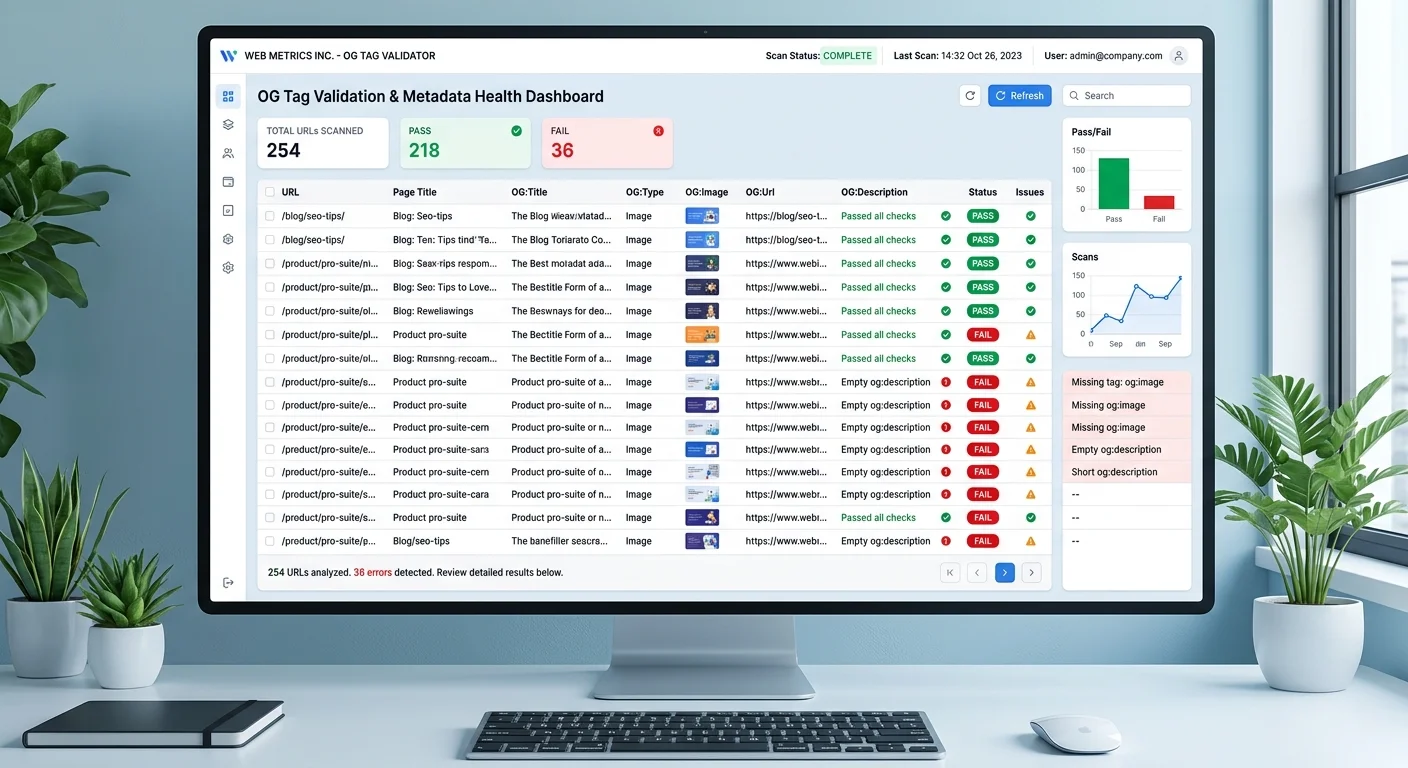
Consider maintaining a simple spreadsheet or dashboard that tracks OG tag health across your top landing pages. Record the last validation date, any errors found, and when caches were last cleared. This documentation proves invaluable during site migrations, redesigns, or when onboarding new team members who need to understand your metadata strategy. Prevention always costs less than emergency fixes after a marketing campaign launches with broken previews.
Frequently Asked Questions
?How do I check OG tags on a React or Vue site?
?Does fixing OG tags immediately update previews on LinkedIn and Facebook?
?How long does diagnosing and fixing broken OG tags typically take?
?Can my page look fine in a browser but still have broken OG tag previews?
Final Thoughts
Broken OG tags are one of the most fixable problems in web development, yet they persist because teams don't build validation into their workflows. The four-step process outlined here (diagnose, identify errors, fix the source code, and verify with cache clearing) works for sites of any size. Make OG tag checks a habit, not a reaction. Your social sharing performance depends on metadata that most visitors never see but every platform relies on to represent your content.
Disclaimer: Portions of this content may have been generated using AI tools to enhance clarity and brevity. While reviewed by a human, independent verification is encouraged.